
What a good creative looks like
Write the tagline first
On Cover the tagline is the biggest type and the only thing most people read. Draft three or four before you touch anything else.
- ads via Carbon


You build products. We handle billing.
Free your team to ship faster. Metronome handles complex billing so you can stay focused on the product.
Start building - ads via Carbon


You code features. We code billing.
Metronome supports usage, outcome, seat, and hybrid pricing out of the box so your team can ship products faster.
See it in action - ads via Carbon


Keep shipping. We've got billing.
Billing infrastructure that scales with your team, without slowing you down.
Start building
Then let the description do a different job
One tagline can carry a whole flight while the description changes underneath it. Say something new, not the tagline again.
- ads via Carbon


Start building faster today
GitLab is built for how you work. Deliver secure software faster.
Start free trial - ads via Carbon


Start building faster today
Get your personalized roadmap for AI-powered developement in five minutes
Take the assessment - ads via Carbon
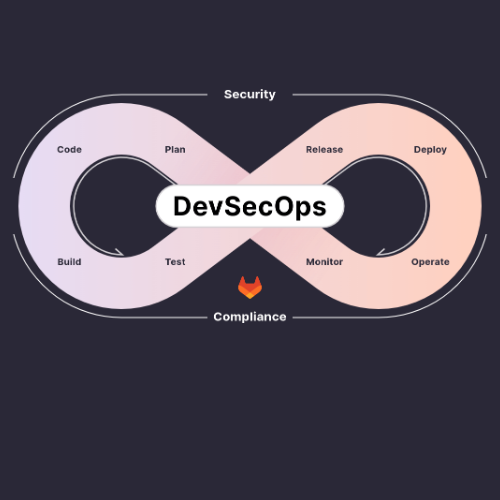

Start building faster today
GitLab is your intelligent orchestration platform for DevSecOps
Talk to Our Team
Say what they actually get
A number, a capability, an outcome. “Solutions”, “platform” and “seamless” give a developer nothing to picture.
Review requests, book clients, and get paid with Squarespace.
ads via Carbon
Start free with 30 GB storage, 1 GB of outbound data transfers per month and more.
ads via Carbon
High-performance Bare Metal. Built for blockchain. 1 Gbps default. 99.95% SLA. NVMe. Deploy now
ads via Carbon
Name the problem, not the promo
The strongest openers describe something the reader is already dealing with. A price can be part of that claim; bolting a discount onto the end is different, and on two separate campaigns those were the ones that finished last.
No frameworks. No build steps. Just clean, fast web components. Meet Web Awesome.
ads via Carbon
Open-source web components for devs who build fast. Explore Web Awesome!
ads via Carbon
Enterprise-grade speed & security from just $1/month. Try Bunny today.
ads via Carbon
Refresh before it goes stale
The same creative wears out inside a quarter. We have watched an identical ad lose a third of its response between one flight and the next. New copy is the cheapest way to reset it, and new artwork works too. Plan the refresh rather than waiting for the numbers to sag.
- ads via Carbon
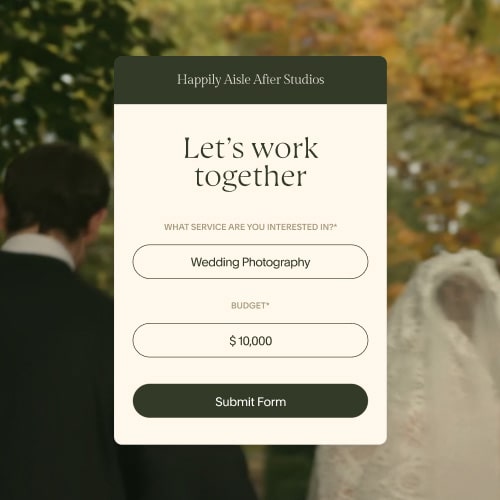

Grow your client list with Squarespace
Squarespace can simplify your workflow, making reviewing projects, sending documents, and getting paid a breeze.
Get Started - ads via Carbon
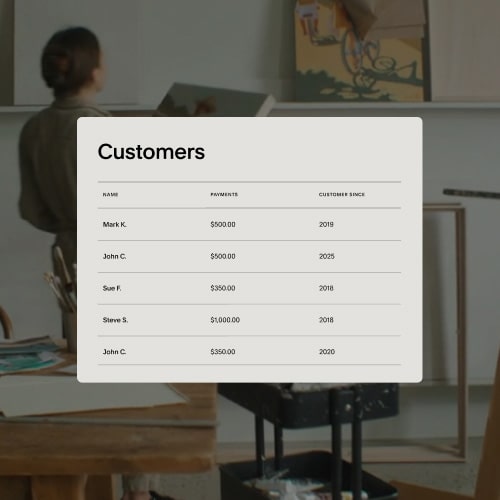

Grow your business with Squarespace
Squarespace makes your marketing, customer management, and checkout flow effortless—all on a single platform.
Get Started - ads via Carbon
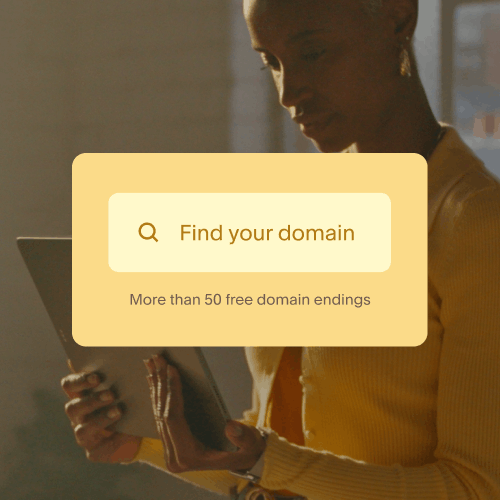

Get A Free Domain with an Annual Plan
Start an annual website plan, and get a free domain name with Squarespace.
Get Started
Keep the image legible
It renders at 130×100. A logo or a simple illustration on flat colour survives that; a screenshot or a sentence set inside the artwork does not. Choose for legibility, then spend your effort on the copy: in our tests, changing only the image usually made no measurable difference — though occasionally it did.
Human-led. AI-powered. Take your content to the next level with advanced AI tools. View plans.
ads via Carbon
Fast implementation, a customizable login experience, and flexible user journeys. Try Auth0 for free
ads via Carbon
Full hardware control, no resource sharing, and up to 99.99% SLA – built for your most demanding applications.
ads via Carbon
More from the 260×200 unit
The standard format, running everywhere on the network. A 260×200 image renders at 130×100, beside up to 100 characters.

28,000+ High-quality UI icons. Made for developers and designers
ads via Carbon
Most Beautiful UI Icon Library! 28,000+ Beautiful Icons.
ads via Carbon
Real-time communication APIs loved by developers worldwide. Trusted by 2,000+ global apps.
ads via Carbon
Still debugging your app's features? Try APIs that work, Trusted by 1B+ end users.
ads via Carbon
Deliver video globally with free encoding & a 200 Tbps+ network. Start free
ads via Carbon
No vendor lock-in. Grow how you want with freedom of architecture selection and configuration.
ads via Carbon
The context layer AI tools need to generate better output with less time and tokens.
ads via Carbon
Stop Googling. Start building. Tutorials, paths & examples—all in one place.
ads via Carbon
Create a website that reflects your personal brand with Squarespace. Start your free trial.
ads via Carbon
Don't lose sleep over downtime. Hop on Bunny for reliable sites that stay up.
ads via Carbon
Get free resources, expert support & access to community events. Join the Arm Developer Program.
ads via Carbon
Bridging the Gap Between Reliable APIs and Unpredictable AI
ads via Carbon
Real-time communication APIs loved by devs. Start building your proof of concept. No CC required.
ads via Carbon
Most Beautiful UI Icon Library! Preview 28,000+ Beautiful Icons.
ads via Carbon
Your fast track into the future of software development. Join the Arm Developer Program today.
ads via Carbon
Squarespace tools make it easy to create a beautiful and unique website.
ads via Carbon
Supercharge your delivery with faster performance worldwide, every time.
ads via Carbon
Get free expert guidance and resources to empower your best work. Join the Arm Developer Program.
ads via Carbon
What to send when you’re ready
Send two or three images, each with its own description. Variations give us a baseline to learn from: we can see which one is winning early and put the weight behind it as the campaign runs.
Your account manager sends the template that collects these; the New Unified Unit tab is where they actually get filled in. This is the summary, so you know what you are gathering before it arrives.
The standard unitThe first block on the sheet, and what gets you onto every placement.
- Small Image260×200 · 300 KB
- Description100 chars max
- LinkURL
Carbon CoverThe four ticked are the gate. Miss one and the ad falls back to the responsive unit; we fill the other two.
- Large Image500×500 · 300 KB
- Logo250×100 · 300 KB
- Company Name30 chars max
- Company Tagline / Ad Title45 chars max
- Call to Action20 chars max
- Background ColorHex value
A partial set still runs. We traffic each placement the version your creative supports, so nothing is at risk while you gather the rest. The only thing missing assets cost you is Cover. The tester says which version yours would get, and carries the guidance for each field.
Check it before you send
Load your assets into the tester and we’ll render them in the real unit, flag anything production would reject, and tell you what’s still missing for Cover. Nothing uploads; everything stays in your browser.
Once a campaign is booked, your account manager sends a collection link where assets are submitted, reviewed and approved. Everything above is the pre-campaign guide. That link is where the final creative goes.